Category: Hacking Around

  • Bluetooth RGB lights using ESP32

    Car lights talking to each other via bluetooth

    Some time ago, one of my kids came home with a couple of discarded truck lights they’d found. They’re the kind that go on the rear of a vehicle, with space for three bulbs each. They were in surprisingly good shape, so we started wondering: what if we put multicolour lights inside them and turned them into something new?


    Before I got too far, I was given a short list of requirements. The lights needed to hang on the wall. They needed to talk to each other wirelessly. They had to show multiple colours. And, finally, could they run on batteries so we wouldn’t have cables dangling everywhere? No pressure.


    Saying I went down a few dead ends would be putting it mildly. My first attempt involved a separate remote control and Arduino WiFi MKR 1010 boards, but I quickly ran into trouble. The boards were finicky about staying connected to Wi-Fi, performance was inconsistent, and the whole setup felt more complicated than it needed to be. Eventually, I switched to ESP32 boards using Bluetooth and moved the controls directly into one of the lights instead of a separate controller. The ESP32s just worked. In hindsight, if I’d started there, I probably could have avoided a lot of detours.


    Of course, car lights aren’t exactly designed to hold a collection of hobbyist electronics. To make everything fit, I ended up 3D-printing several small boxes and covers, attaching them with bolts or Velcro. I deliberately avoided drilling new holes in the original lights, just in case we ever wanted to take the whole thing apart and sell them later.

    Electronic components

    • Common anode RGB LED – There was no reason for using a common anode LED, it wasn’t specified on the Amazon order and it works just as well.
    • ESP32 – as I mentioned earlier, I had tried an Arduino WIFI MKR 1010. As well, I had also tried a Raspberry Pi Pico and I found the ESP32 were more stable and “just worked” for what I needed. I’ll probably use both the Arduino and the Pico for other projects, instead.
    • Buck converter maybe this is overkill but I could pair this with more batteries and get good-enough voltage control.
    • Slide switches – potentiometers would have been more fine-grained, but switches are fine fairly straightforward.
    • Diode – I use this in case I am plugging in my ESP32 to change the code and don’t feel like unplugging the main power. It just does its job, which is to keep the current flowing in the right direction.

    Circuit Diagrams

    I have two diagrams, one is the “sender” of the signal and has three slide switches. The switches turn the colours one and off. The other is the bluetooth “receiver” which does not have any switches but is otherwise the same.

    Wiring diagram of the sender.

    For the 9V battery, I used 6 AA batteries. I really wanted to ensure all the electronics were powered, properly and brought the voltage down using the buck converter.

    Wiring diagram of the receiver. It is mostly the same except there are no slide switches.
    Wiring of receiver module.

    3D printed components

    The prints aren’t complicated, where the only thing that took any special calculation was a little trigonometry to get some of the angles for the back correct. Getting to use that was nice because I had just been tutoring my oldest in math and now I was able to use it in a “real world” situation. 

    The stl files can be reached via this link on Google Drive https://drive.google.com/file/d/1Uyve7hnl4fjpOUiTSy3FAjQ02FXD4fiL/view?usp=sharing

    Back of lights 3D printed. The square hole is for hanging on the wall.

    Code

    This is the code for the ESP32 that sends commands to the receiving module. Full disclosure is ChatGPT helped troubleshoot this when I got stuck.

    #include <BLEDevice.h>
    #include <BLEUtils.h>
    #include <BLEScan.h>
    #include <BLEClient.h>
    #include <BLERemoteService.h>
    #include <BLERemoteCharacteristic.h>
    #include <Arduino.h>
    #include "driver/ledc.h"
    #include <string>
    
    ///----set the switches
    #define bluePin 4
    #define greenPin 16
    #define redPin 15
    int redState;
    int blueState;
    int greenState;
    
    //------set the LED pins
    const int ledPin1 = 17; //red
    const int ledPin2 = 23; //green
    const int ledPin3 = 22; //blue
    const int ledChannel1 = 0;
    const int ledChannel2 = 1;
    const int ledChannel3 = 2;
    const int freq = 5000;
    const int resolution = 8;
    
    //-------set calculated variables
    int rset;
    int bset;
    int gset;
    
    static BLEAddress *pServerAddress;  // Peripheral BLE address
    static boolean doConnect = false;
    static boolean connected = false;
    static BLERemoteCharacteristic* pRemoteCharacteristic;
    ///the following is for the button
    String sendthing = "1";
    int buttonState = 0;   
    ///end of button thing
    #define SERVICE_UUID        "12345678-1234-1234-1234-1234567890ab"  // Replace with your service UUID
    #define CHARACTERISTIC_UUID "abcdefab-1234-5678-1234-abcdefabcdef"  // Replace with your characteristic UUID
    
    // Callback to handle discovered peripherals during scan
    class MyAdvertisedDeviceCallbacks: public BLEAdvertisedDeviceCallbacks {
        void onResult(BLEAdvertisedDevice advertisedDevice) {
            Serial.print("Found device: ");
            Serial.println(advertisedDevice.toString().c_str());
    
            // If device has the service UUID we want
            if (advertisedDevice.haveServiceUUID() && advertisedDevice.isAdvertisingService(BLEUUID(SERVICE_UUID))) {
                advertisedDevice.getScan()->stop();  // stop scanning
                pServerAddress = new BLEAddress(advertisedDevice.getAddress());
                doConnect = true;                     // flag to connect in loop
                Serial.println("Found target device! Will connect...");
            }
        }
    };
    
    // Connect to peripheral and discover service/characteristic
    bool connectToServer(BLEAddress pAddress) {
        Serial.print("Connecting to ");
        Serial.println(pAddress.toString().c_str());
    
        BLEClient*  pClient  = BLEDevice::createClient();
        Serial.println(" - Created client");
    
        if (!pClient->connect(pAddress)) {
            Serial.println("Failed to connect.");
            return false;
        }
        Serial.println(" - Connected to server");
    
        BLERemoteService* pRemoteService = pClient->getService(SERVICE_UUID);
        if (pRemoteService == nullptr) {
            Serial.println("Failed to find service.");
            pClient->disconnect();
            return false;
        }
        Serial.println(" - Found service");
    
        pRemoteCharacteristic = pRemoteService->getCharacteristic(CHARACTERISTIC_UUID);
        if (pRemoteCharacteristic == nullptr) {
            Serial.println("Failed to find characteristic.");
            pClient->disconnect();
            return false;
        }
        Serial.println(" - Found characteristic");
    
        connected = true;
        return true;
    }
    
    void setup() {
        Serial.begin(115200);
        Serial.print("sending[0] is :");
        Serial.println(sendthing[0]);
      //----these are the on-off switches
      pinMode(redPin, INPUT_PULLUP);
      pinMode(bluePin, INPUT_PULLUP);
      pinMode(greenPin, INPUT_PULLUP);
    
      // Set up PWM channels
      ledcSetup(ledChannel1, freq, resolution);
      ledcSetup(ledChannel2, freq, resolution);
      ledcSetup(ledChannel3, freq, resolution);
    
      // Attach LED pins
      ledcAttachPin(ledPin1, ledChannel1);
      ledcAttachPin(ledPin2, ledChannel2);
      ledcAttachPin(ledPin3, ledChannel3);
    
      // Force the duty to zero - the LEDs are Anode, meaning the 'high' is 'low'
      ledcWrite(ledChannel1, 255);
      ledcWrite(ledChannel2, 255);
      ledcWrite(ledChannel3, 255);
        
        Serial.println("Starting ESP32 BLE Client...");
    
        BLEDevice::init("ESP32_Client");
    
        BLEScan* pBLEScan = BLEDevice::getScan();
        pBLEScan->setAdvertisedDeviceCallbacks(new MyAdvertisedDeviceCallbacks());
        pBLEScan->setActiveScan(true);
        pBLEScan->start(10, false); // scan for 10 seconds
    }
    
    void loop() {
        if (doConnect) {
            if (connectToServer(*pServerAddress)) {
                Serial.println("We are now connected to the BLE Server.");
            } else {
                Serial.println("Failed to connect to server.");
            }
            doConnect = false;
        }
    
        if (connected) {
            if (pRemoteCharacteristic->canRead()) {
              //  String value = pRemoteCharacteristic->readValue();  // Arduino String
                String value = String(pRemoteCharacteristic->readValue().c_str()); // correct for ESP32 BLE Arduino
        Serial.print("Characteristic value: ");
        Serial.println(value.c_str());  // can print Arduino String directly
            }
    
            // Example: write a value
            if (pRemoteCharacteristic->canWrite()) {
                pRemoteCharacteristic->writeValue(sendthing[0]);
                Serial.print("I sent ");
                Serial.println(sendthing[0]);
            }
    
            delay(300);  // wait 0.5 seconds before next read/write
        }
        // put your main code here, to run repeatedly:
      redState = digitalRead(redPin);
      blueState = digitalRead(bluePin);
      greenState = digitalRead(greenPin);
      Serial.print("Red state is: ");
      Serial.print(redState);
      Serial.print(" and Blue state is: ");
      Serial.print(blueState);
      Serial.print(" and Green state is: ");
      Serial.print(greenState);
      Serial.print(" and the sendthing is: ");
      Serial.println(sendthing);
      //all the different possiblities
      if(redState == LOW && greenState == LOW && blueState == LOW){
        sendthing = "1";
      }
      else if(redState == HIGH && greenState == LOW && blueState == LOW){
        sendthing = "2"; //red
      }
      else if(redState == HIGH && greenState == HIGH && blueState == LOW){
        sendthing = "3"; 
      }
      else if(redState == HIGH && greenState == HIGH && blueState == HIGH){
        sendthing = "4";
      }
      else if(redState == LOW && greenState == HIGH && blueState == HIGH){
        sendthing = "5";
      }
      else if(redState == LOW && greenState == LOW && blueState == HIGH){
        sendthing = "6";
      }
      else if(redState == HIGH && greenState == LOW && blueState == HIGH){
        sendthing = "7";
      }
      else if(redState == LOW && greenState == HIGH && blueState == LOW){
        sendthing = "8";
      }
        for (int duty = 0; duty <= 255; duty++) {
          redState == LOW ? rset = 255 : rset = duty ;
          greenState == LOW ? gset = 255 : gset = duty ;
          blueState == LOW ? bset = 255 : bset = duty ;
          ledcWrite(ledChannel1, rset);
          ledcWrite(ledChannel2, gset);
          ledcWrite(ledChannel3, bset);
          delay(30);
        }
      for (int duty = 255; duty >= 0; duty--) {
          redState == LOW ? rset = 255 : rset = duty ;
          greenState == LOW ? gset = 255 : gset = duty ;
          blueState == LOW ? bset = 255 : bset = duty ;
          ledcWrite(ledChannel1, rset);
          ledcWrite(ledChannel2, gset);
          ledcWrite(ledChannel3, bset);
          delay(30);
        }
    }

    The following is the receiver code on the module with no switches.

    #include <BLEDevice.h>
    #include <BLEServer.h>
    #include <BLEUtils.h>
    #include <BLE2902.h>
    #include <string>
    #include <Arduino.h>
    #include "driver/ledc.h" 
    
    // UUIDs (use random unique ones if you want)
    #define SERVICE_UUID        "12345678-1234-1234-1234-1234567890ab"
    #define CHARACTERISTIC_UUID "abcdefab-1234-5678-1234-abcdefabcdef"
    
    //------set the LED pins
    const int ledPin1 = 22; //red
    const int ledPin2 = 23; //green
    const int ledPin3 = 17; //blue
    const int ledChannel1 = 0;
    const int ledChannel2 = 1;
    const int ledChannel3 = 2;
    const int freq = 5000;
    const int resolution = 8;
    int rset;
    int bset;
    int gset;
    String value;
    #define LED_1 4
    #define LED_2 5
    int theglobal = 4;
    int usethis = 4;
    BLECharacteristic *commandCharacteristic;
    
    class CommandCallback : public BLECharacteristicCallbacks {
      void onWrite(BLECharacteristic *pCharacteristic) {
        value = String(pCharacteristic->getValue().c_str()); // correct for ESP32 BLE Arduino
        Serial.print("the value is: ");
        Serial.println(value);
        if (value.length() > 0) {
          Serial.print("Received command: ");
         // Serial.println(value.c_str());
            Serial.println(value);
          // Example: turn LED on/off with "ON"/"OFF"
          if (value == "1") {
            // everything off
            rset = 255;
            gset = 255;
            bset = 255;
          } else if (value == "2") {
            // red
            rset = 1;
            gset = 255;
            bset = 255;
          
          } else if (value == "3") {
            // red and green
            rset = 1;
            gset = 1;
            bset = 255;
          
          } else if (value == "4") {
            // white
            rset = 1;
            gset = 1;
            bset = 1;
          
          } else if (value == "5") {
            // yellow
            rset = 255;
            gset = 1;
            bset = 1;
          
          } else if (value == "6") {
            // blue
            rset = 255;
            gset = 255;
            bset = 1;
          
          } else if (value == "7") {
            // purple
            rset = 1;
            gset = 255;
            bset = 1;
          
          } else if (value == "8") {
            // all gree
            rset = 255;
            gset = 1;
            bset = 255;
          }
          // Example: accept "R,G,B" (basic parse for PWM LED strip)
          else {
            /// not sure so just turn everyhing on
            rset = 1;
            gset = 1;
            bset = 1;
          }
        }
      }
    };
    
    void setup() {
      Serial.begin(115200);
        // Set up PWM channels
      ledcSetup(ledChannel1, freq, resolution);
      ledcSetup(ledChannel2, freq, resolution);
      ledcSetup(ledChannel3, freq, resolution);
    
      // Attach LED pins
      ledcAttachPin(ledPin1, ledChannel1);
      ledcAttachPin(ledPin2, ledChannel2);
      ledcAttachPin(ledPin3, ledChannel3);
    
      // Force the duty to zero - the LEDs are Anode, meaning the 'high' is 'low'
      ledcWrite(ledChannel1, 255);
      ledcWrite(ledChannel2, 255);
      ledcWrite(ledChannel3, 255);
    
      BLEDevice::init("ReceiverESP32");  // BLE device name
      BLEServer *pServer = BLEDevice::createServer();
    
      BLEService *pService = pServer->createService(SERVICE_UUID);
    
      commandCharacteristic = pService->createCharacteristic(
        CHARACTERISTIC_UUID,
        BLECharacteristic::PROPERTY_WRITE |
        BLECharacteristic::PROPERTY_READ
      );
    
      commandCharacteristic->setCallbacks(new CommandCallback());
      commandCharacteristic->setValue("Waiting...");
    
      pService->start();
    
      BLEAdvertising *pAdvertising = BLEDevice::getAdvertising();
      pAdvertising->addServiceUUID(SERVICE_UUID);
      BLEDevice::startAdvertising();
    
      Serial.println("Peripheral ready, advertising as 'ReceiverESP32'. With new code!");
    }
    
    void loop() {
        
            
            int rval;
            int bval;
            int gval;
            
        for (int duty = 0; duty <= 255; duty++) {
          rval = max(duty, rset) ;
          bval = max(duty, bset) ;
          gval = max(duty, gset) ;
          ledcWrite(ledChannel1, rval);
          ledcWrite(ledChannel2, gval);
          ledcWrite(ledChannel3, bval);
          Serial.print("the rval is :");
            Serial.print(rval);
            Serial.print(" and the gval is :");
            Serial.print(gval);
            Serial.print(" and the bval is :");
            Serial.print(bval);
            Serial.print(" and the duty is: ");
            Serial.println(duty);
          delay(30);
        }
        delay(30);
      for (int duty = 255; duty >= 0; duty--) {
          rval = max(duty, rset) ;
          bval = max(duty, bset) ;
          gval = max(duty, gset) ;
          ledcWrite(ledChannel1, rval);
          ledcWrite(ledChannel2, gval);
          ledcWrite(ledChannel3, bval);
          Serial.print("the rval is :");
            Serial.print(rval);
            Serial.print(" and the gval is :");
            Serial.print(gval);
            Serial.print(" and the bval is :");
            Serial.print(bval);
            Serial.print(" and the duty is: ");
            Serial.println(duty);
          delay(30);
        }
    }
  • Sound Detector with Microview

    Sound Detector with Microview

    I built this because our new home has a number of pinging ducts and I wanted to get to the bottom of it. So I decided to build something that could ‘hear’ through walls and display the number on a screen. In theory, this should allow me to pinpoint exactly where sounds might be located.

    I had a few components at my fingertips, one of them being the Sparkfun Microview which I might have even obtained way back when they had their Kickstarter campaign. I had built a pretty sweet magnet detector with them, so a sound detector should be relatively the same level of difficulty.

    Image of Sound Detector from top and side
    Sound Detector built with SparkFun components,

    I ordered the Sparkfun sound detector and hooked up all the components (the code below has some notes around that). Because reading the slider numbers were kind of tricky, I created a delay for displaying the current sound level. More useful is the “max” sound which shows quick peaks. In order to reset the maximum sound, I just installed a power button.

    /* Code from Sparkfun sound detector and Microview hookup guide
     * Connections:
     * The Sound Detector is connected to the Microview as follows:
     * (Sound Detector -> Arduino pin)
     * GND ? GND
     * VCC ? 5V
     * Gate ? Pin 1
     * Envelope ? A0
     * 
     * Additional library requirements: none, except Microview
     */
    #include <MicroView.h>
    MicroViewWidget *widget_max, *widget_snd; //declares a widget class which is the slider
    
    //sound variables
    int snd = 0; //this is the read of the sound
    int snd_max = 0; /// this is useful in case of fast, sudden ticks
    
    /// inputs to Microview
    #define PIN_ANALOG_IN A0
    #define PIN_GATE_IN 1 // different than sample code https://learn.sparkfun.com/tutorials/sound-detector-hookup-guide
    
    int counter = 0; ///use this to create a display in reading. why not use delay() function ? Because you want to update 'snd_max' as much as possible
    
    void setup()
    {
      Serial.begin(9600); // I only kept this for troubleshooting
      Serial.println("Initialized"); // again, not really needed
      uView.begin();
      uView.clear(PAGE);
      widget_snd = new MicroViewSlider(0,5,0,1024, WIDGETSTYLE1);//15, 0 is the location, 0, 255 is the slider number
      widget_max = new MicroViewSlider(0,30,0,1024, WIDGETSTYLE1+WIDGETNOVALUE);//50, 0 is the location, 0, 255 is the slider number
    // I have the WIDGETNOVALUE because I have special max text with labels (see further down)
    }
    
    void loop()
    {
      snd = analogRead(PIN_ANALOG_IN);
      counter++ ; ///once this gets up to a certain amount, then update the main slider viz
      Serial.println(counter);
      if(counter >= 90){
          widget_snd->setValue(snd);  //top slider
          counter = 0; // reset counter
      }
      // this next section sets the sound max (bottom) slider
      if(snd > snd_max){snd_max = snd;}
      widget_max->setValue(snd_max);
      // this next section is just to make sure what is max and what is not is visible
      uView.setCursor(10,40);
      char max_text[10];
      sprintf(max_text,"max: %d", snd_max);
      uView.print(max_text);
      uView.display();
      delay(10);
    }

    The assembly used a headphone cover in order to insulate against outside sounds and I could then hold it up against a wall/floor/ceiling. I didn’t have a nice project box that let me look inside, so I used an old plastic box that used to hold nails in it. The advantage is the plastic is soft enough to cut or drill easily and is the right size. It also felt pretty DIY punk rock.

    Image of top view of sound detector
    Sound Detector seen from the top

    Some minor headaches is that the Microview doesn’t have the pin numbers on it, probably for aesthetic reasons. So you keep having to refer to a diagram, which I printed up an posted on a wall. For troubleshooting, you have to disconnect the whole thing and then reconnect it. Because of that, I would say that Microview is great, but not the first hobby micro-controller you ever want to use. I think they are so cute and otherwise easy to use, though, that I feel like the challenges are worth it.

  • Monkey Tank

    Monkey Tank

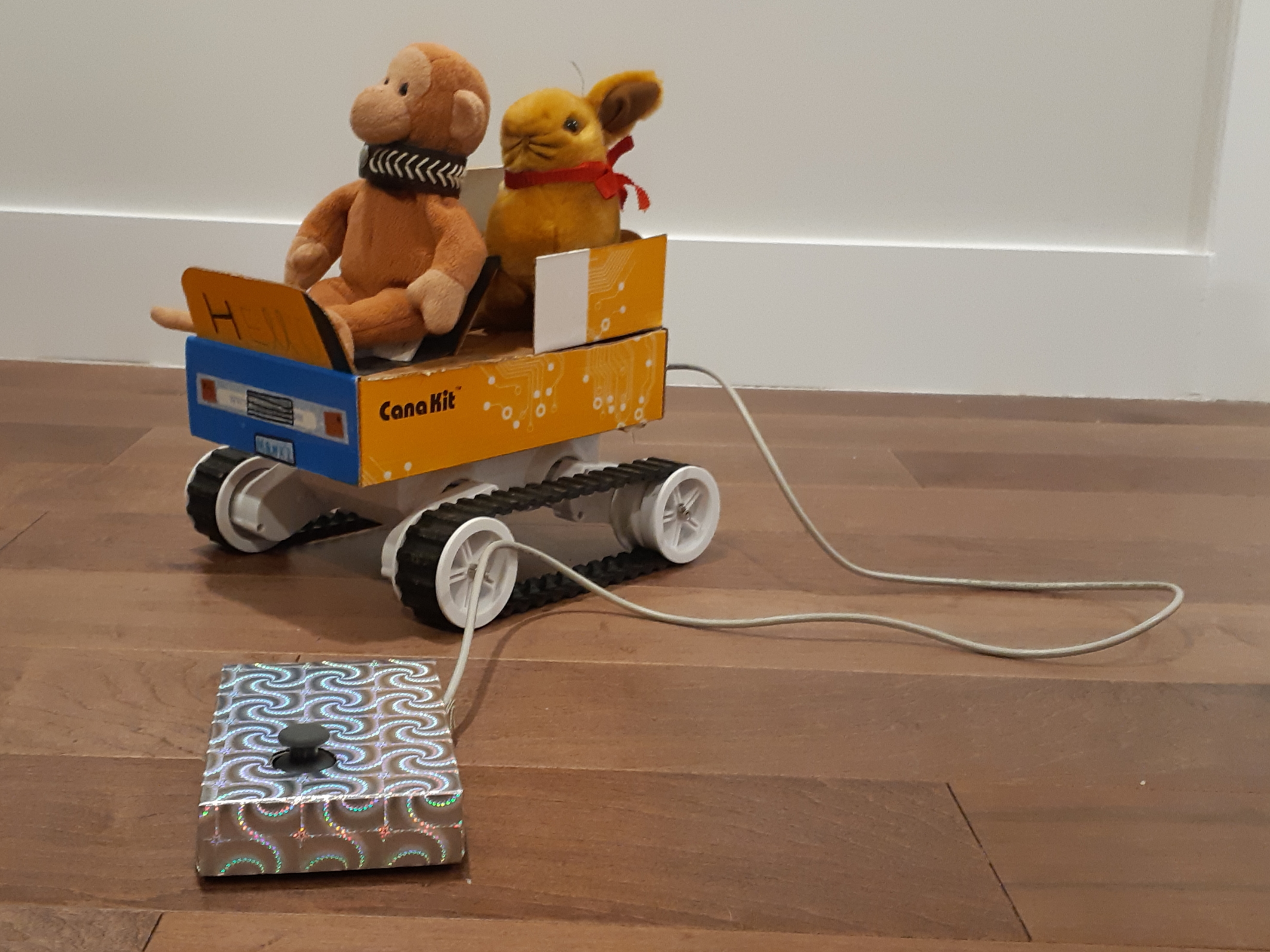
    The best projects are ones where you manage to find everything on-hand and no waiting for deliveries or going out to get extra material. Thus is the case with Monkey Tank. My nine-year old has a small stuffed monkey (named, you guessed it: “Monkey”) and wanted to build a little remote control car for it. Kids being kids, she does not have a lot of patience and also aren’t giant perfectionists, so I wanted something quick but fun.

    At home, I had a Rover S Robot Chassis that I thought I could do something at the cottage with, plus other miscellaneous parts (joystick, Arduino Uno, motor shield), Since I source most of my parts from Creatron, that’s where you are seeing most of the links.

    The parts list is as follows:

    View of tank opened to show wiring
    Overview of tank

    Any other tutorial I have seen of the chassis has really messy wiring, so no apologies as I follow that grand tradition. I did, however label the connectors (RF for “right front”, LF for “left front, and so on).

    Close up of wiring in the tank

    Coming to the rescue is a Fritzing diagram of the clean circuit. I paired each side (e.g. the left side together on one output, the right side together on the other output).

    Fritzing clean circuit diagram

    I found a sparkly box that probably had costume jewelry in it at some point. I wanted most of the body and casing to just be out of cardboard to be easy to cut and customize.

    Joystick box opened showing simple wiring

    For the body, we had an old Cana Kit box from a Raspberry Pi delivery, which turns out it was just the right size.

    Assembled tank with Monkey and Rabbit

    Finally below is the simple code. Thanks to past contributors and documentation, this was a fun project!

        /* Ardumoto and Rover S chassis sketch
      by: Joseph Lalonde 
      website: https://zenbot.ca
      twitter: https://twitter.com/jpindi
      date: May 17, 2020
      license: Public domain. Please use, reuse, and modify this 
      sketch.
      
      Special thanks to:
      Jim Lindblom, originally created November 8, 2013
      
      Adapted to v20 hardware by: Marshall Taylor, March 31, 2017
     
     With ardumoto, do NOT use pins 12, 3, 13, 11 
     */
    
    int JoyHorz = A0;
    int JoyVert = A1;
    
    int JoyPosVert = 512;
    int JoyPosHorz = 512;
    // Clockwise and counter-clockwise definitions.
    // Depending on how you wired your motors, 
    // you may need to swap.
    
    #define FORWARD  0
    #define REVERSE 1
    
    // Motor definitions to make life easier:
    #define MOTOR_A 0
    #define MOTOR_B 1
    
    // Pin Assignments 
    #define DIRA 12 // Direction control for motor A
    #define PWMA 3 // PWM control (speed) for motor A
    #define DIRB 13 // Direction control for motor B
    #define PWMB 11 // PWM control (speed) for motor B
    
    char data[100];
    
    void setup()
    {
      Serial.begin(9600); //I had the output to serial for troubleshooting.
      setupArdumoto(); // Set all pins as outputs
      stopArdumoto(MOTOR_A); //set to zero to start off
      stopArdumoto(MOTOR_B);
    
    void loop()
    {
      JoyPosVert = analogRead(JoyVert);
      JoyPosHorz = analogRead(JoyHorz);
      if (JoyPosVert < 200 || JoyPosVert > 800){
        // this 200 and 800 I had to play with trial and error
        // to get the right amount.
      if (JoyPosVert < 200){
      // this is in REVERSE
        driveArdumoto(MOTOR_A, REVERSE, 255);
        driveArdumoto(MOTOR_B, REVERSE, 255);  
      }
      else if (JoyPosVert > 800) { 
      
        driveArdumoto(MOTOR_A, FORWARD, 255);
        driveArdumoto(MOTOR_B, FORWARD, 255);
        
      } // end of if JoyPosVert
      } else if (JoyPosVert > 300 || JoyPosVert < 900) {
       if (JoyPosHorz > 900) { ////turn right
      
        driveArdumoto(MOTOR_A, REVERSE, 75); ////topsy turvy world!
        driveArdumoto(MOTOR_B, REVERSE, 255);
      }
      else if (JoyPosHorz < 200) { ////turn left
      
        driveArdumoto(MOTOR_A, REVERSE, 255);
        driveArdumoto(MOTOR_B, REVERSE, 75);
      }
      else {  ///do nothing
        stopArdumoto(MOTOR_B);
        stopArdumoto(MOTOR_A);
      }
      }else {  ///do nothing
        stopArdumoto(MOTOR_B);
        stopArdumoto(MOTOR_A);
      }
      sprintf(data, "Vertical input is: %d and Horizontal input is %d;", JoyPosVert, JoyPosHorz);
      //sprintf(data, "Sensor value of A3 is: %d and mapped is %d", bright, br_map);
      Serial.println(data); 
    delay(100);
    } //end of void loop
    
    // driveArdumoto drives 'motor' in 'dir' direction at 'spd' speed
    void driveArdumoto(byte motor, byte dir, byte spd)
    {
      if (motor == MOTOR_A)
      {
        digitalWrite(DIRA, dir);
        analogWrite(PWMA, spd);
      }
      else if (motor == MOTOR_B)
      {
        digitalWrite(DIRB, dir);
        analogWrite(PWMB, spd);
      }  
    }
    
    // stopArdumoto makes a motor stop
    void stopArdumoto(byte motor)
    {
      driveArdumoto(motor, 0, 0);
    }
    
    // setupArdumoto  setup the Ardumoto Shield pins 
    // initialize all pins
    void setupArdumoto()
    {
      // All pins should be setup as outputs:
      pinMode(PWMA, OUTPUT);
      pinMode(PWMB, OUTPUT);
      pinMode(DIRA, OUTPUT);
      pinMode(DIRB, OUTPUT);
    
      // Initialize all pins as low:
      digitalWrite(PWMA, LOW);
      digitalWrite(PWMB, LOW);
      digitalWrite(DIRA, LOW);
      digitalWrite(DIRB, LOW);
    }
    
  • 3D Printing a Fan Case

    3D Printing a Fan Case

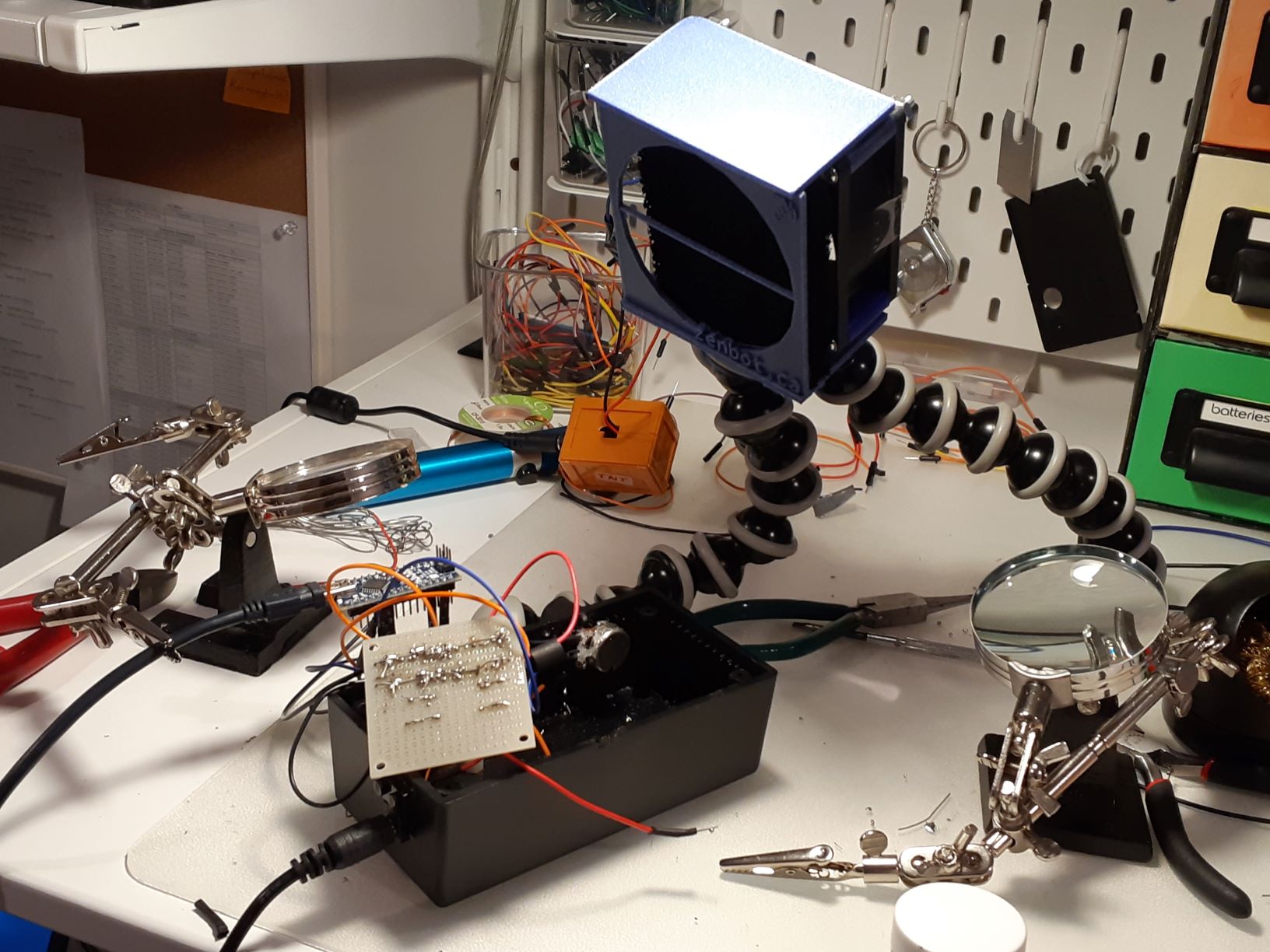
    After a recent move to north Etobicoke, I thought I would check out the local Toronto Public Library near my home. To my delight they have a digital innovation hub, meaning green screen studios, computers with animation and design software and 3D printers. At the same time I was setting up my electronics workshop (we are trying to call it my “lab” but the name isn’t sticking) and needed a better way of dealing with solder fumes. Maker 101 exercises in popular how-to books show you how to build a solder fan out of a computer fan and a few other parts.

    I wanted a way of adjusting the direction of the fan, and decided to add a 3D printed case that could be mounted on a flexible tripod since it would be about the same size as a camera and I already had a number of tripods sitting around the house. I picked up a fan at A-1 Electronic Parts which is an amazing treasure trove of random used electronics. Searching on Thingiverse, however, showed only plans for either the wrong size for what I bought, or were just not functional enough. So I designed my own in Tinkercad.

    Tinkercad: https://www.tinkercad.com/users/j9jVvc6gZa2-jpindi

    Thingiverse: https://www.thingiverse.com/jpindi/about

    Taking the attitude of “measure 3 times, design 2 times, print once” I built a purely functional case, and the Library uses Cura to send the print job to the printer. I included a spot to insert a nut to allow me to attach the tripod. Basically I printed a hole the right size and used good jeweler’s glue to keep the nut in place.

    Nut used for attaching tripod.

    I had an old Angry Birds toy that I took apart that held some of the connections for the fan, including the plug. It works well! I still wear a mask and protective eyewear just to make sure, but I see the fumes getting pulled into the carbon filter consistently well.

    It was kind of long, with multiple visits to the library because I wanted to make sure I got all the pieces printed correctly. Unfortunately, that meant a slightly different shade of blue mid-way through, but you don’t really notice and since this is kind of a workhorse, aesthetics are not that important. Glad to have something at the end of the day that just works!

    Lording over a wiring job, War of the Worlds style!
  • Animating simpleheat.js

    Animating simpleheat.js

    As a POC (proof-of-concept) for a presentation, I wanted to generate a heat map, similar to the kind you see for Toronto Raptors players and for other examples, such as for airline flights or overlays on physical world maps.

    Because I was presenting this in front of a fairly mixed audience, I did not want to make assumptions about how well they could make the mental ‘leap’ while I explain the narrative I had built for them. In other words, for each part of the story I was telling them, I wanted them to see the transition from one idea to another. Therefore, I decided to find a way to animate the heatmap to make the transition as smooth as possible.

    A great lightweight heatmap is simpleheat.js (demo) that I integrated into a wireframe in the form of a web page. I stripped my presentation down and posted it to GitHub here.

    Because this is just a concept, the data is not actually generated by the client; it was data that I created for this purpose (see my blog post on creating placeholder data). For the demo, there are actually several data sets.

    However, the beginning heatmap result and the final result at the end can be really different than one another. Therefore, if you just hit ‘load’ on the next set of data to re-populate the heat map, it will ‘jump’ and not be a smooth transition.

    To get a smooth transition, I implemented an animation concept called inbetweening which in this case loads all the states in between the beginning and the end of the two heatmaps. Because this was just a fast proof-of-concept, there is lots of room for code optimization to make an even smoother transition and error checking.

    The order of operations is the following:

    1. Bring in the first json dataset and populate heatmap.
    2. Load in the second json but don’t populate the heatmap, yet. Make sure they have the same xy coordinates and that those coordinates in the second json are in the same order as the first json. (This is assumed to be generated at source. I didn’t add a try-catch to the code.)
    3. Find the two coordinates that have the greatest difference in z-values. This means running through the list, loading the values into the array and performing Math.max on the array. (Note this is a different ‘maximum’ than ‘themax’ variable in the code.)
    4. The max value from the step above is the number of incremental changes.
    5. The function looptheloop() is called as many times as needed, as determined by the steps 3 and 4 above. This function looks at the difference of the z-values for each coordinate.
    6. If there is no difference in the z-value for a given set of coordinates, do nothing and ride out the loops until the end (see ‘Same value’ section below).
    7. If there is a difference in z-value for a given pair of coordinates, it updates the starting json by moving it gradually closer and closer to the target json (see ‘Different z-value’ section, below).
    8. In the code, you will see there is an incremental update to a value called ‘themax’, but this might not be needed in your case. I used it to avoid the predominance of too much red in one of the results I was seeing.
    9. Therefore, the starting json is updated and reloaded, step-by-step. Once the starting and target json are the same, the incremental refreshing of the heatmap stops.

    Same z-value for source and target?

    Different z-value? Change and re-load by increments.

    In developing this code, I had a look at some dataframe capabilities to avoid so many loops. However, because I wanted to get this out quickly, I did not finish exploring javascript dataframes. If the number of loops causes your animation to grind, then a dataframe would be highly suggested.

    Want a smoother animation? Simply make the increments to be fractions (right now the fractions are 1 at a time, but could be 0.5 or 0.25 as simpleheat can handle it). Then call looptheloop function more often.

  • Placeholder heatmap data

    Placeholder heatmap data

    I recently needed to create an interactive wireframe concept using a heatmap. This was for a presentation and I needed to walk the client through a particular story. As a result I needed just enough data to populate the heatmap but had to somehow create the data myself.

    Getting the right data wouldn’t be straightforward: The heatmap, using json, requires both an x-and-y coordinates, and then a third value to denote intensity of colour on it (I’m calling it z or z-value). Since this was a POC (proof-of-concept) I needed just enough for it to work, but didn’t want to over-engineer it.

    Even though the heatmap is about 750 by 500 pixels, you don’t need 500 rows and 750 columns in Excel to get it to work. In my example I had 30 rows and 47 columns, and then I just multiplied them to get them to reach across to the full range of pixels in the heat map. This is because the points are fuzzy and spread out and cover any gaps. You’ll see this in the Excel example for download, below.

    Since I was kind of hacking this out, I simply created a grid in Excel which had x-coordinates along the top, y-coordinates on the side, and then in the middle, the z-values. In order for me to see roughly what it would look like, I used conditional formatting in Excel to show colour values based on a scale.

    Below the Excel ‘heatmap’, I concatenated values in the format of the json file, multiplying the coordinates so it would fill in the whole canvas in html. Then I cut the ‘json’ file into somewhere the javascript would find it. Running the simpleheat.js code on the placeholder file was the final step.

    In case the explanation isn’t enough, I’ve made the Excel file available for download here.

  • Using Amazon EC2 Linux for Vanilla Minecraft Server

    Using Amazon EC2 Linux for Vanilla Minecraft Server

    (Hey, I closed comments on my posts, but if you have follow-up questions about this, please contact me directly!)

    After months of begging, I finally caved in to my seven-year-old’s pleading to install a Minecraft server for her to use with her friends. Not only was I prompted by the challenge, but I also wanted an environment for the kids that I could keep an eye on (plus the endless begging wore me down, obviously). Originally, I was going to build a FreeNAS box and host it there, but a colleague at work suggested Amazon Web Services as a scalable, but easier alternative. While getting your own hardware is not wrong, I have to give a shout-out to Brent who led me to the alternative that (so far) works best for me.

    in office using minecraft server
    Minecraft Server fun

    Setting up the server was pretty straightforward: If you have an Amazon account (basically if you have ever bought any books and/or loot from Amazon) then you can use that to get the server. I used a Linux option which seemed to have Java already installed. I made sure the Linux instance was a t2.small instead of t2.micro to make sure there is enough wiggle room for memory (2GiB vs. 1GiB, although I might need more when the gang starts really hitting it, but this was the minimum even to get it going). Adding more memory changes the public IP because you have to stop and restart it. I also “IP locked” the server as a measure of security as well as whitelisting using the Minecraft admin commands. So really the game is double-locked, including whitelisting.

    Once I had the server instance running, I pretty much followed the steps to install PuTTY and WinSCP because I started on Windows OS at first. My goal was to be able to do everything from home, which is a Mac, which I managed to pull off by creating a .pem key from PuTTYgen in the Windows machine and then imported it into Cyberduck. Great video tutorial by Jhonny Fransis on it here, but getting that .pem key is “the key”.

    Along the way, I did get a “WARNING: UNPROTECTED PRIVATE KEY FILE!” error when using the Mac Terminal to get access to the server, but that was probably because I had the .pem file sitting in a Dropbox folder. Once I moved a copy to my local machine and pointed to that the error went away.
    Now that Minecraft is up and running using the tutorial here, the only three lines to get into the admin section of the Minecraft server are the following in Terminal (NB I changed some details around, but the format is right):

    ssh -i /Users/jlalonde/Documents/minecraft/jlalondekeypair.pem ec2-user@ec2-52-67-101-43.us-west-2.compute.amazonaws.com
    cd minecraft_folder
    java -Xms1G -Xmx2G -jar minecraft_server.1.8.1.jar nogui

    Note that not everything is perfect, and I still get booted out, sometimes, but I may increase the memory allocation, because it seems to work well enough that this is probably it. I am sure my test player will enjoy herself trying it out!

    Minecraft screen shot
    Hey look! An island! And adventure!

  • Gear box update

    Gear box update

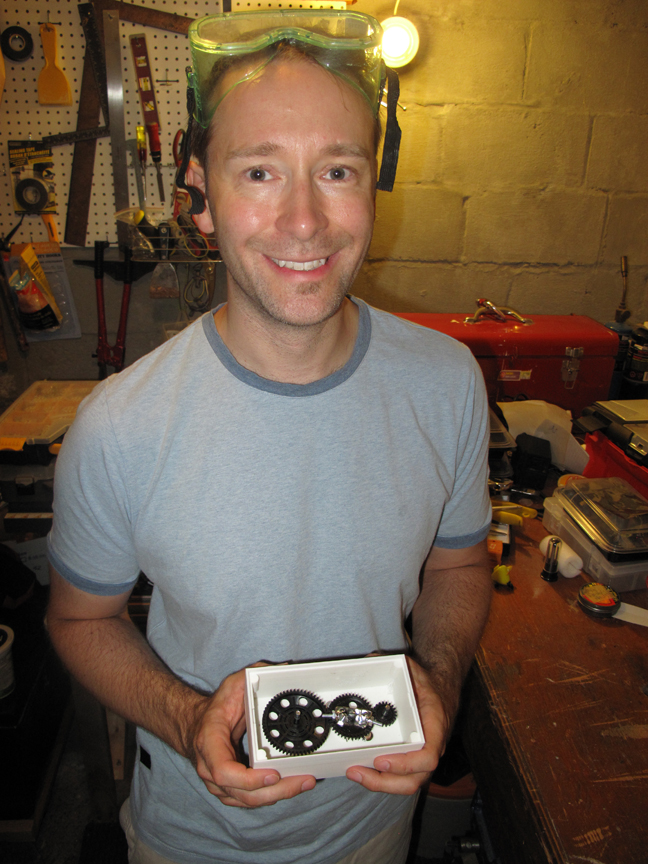
    I manage to get some projects done relatively quickly while others tend to be a bit of a slow burn. My printed gear box has definitely been one of the latter. To recap, awhile ago I designed a gear box and engaged 3D Co. to prototype one for me. It works great, and I am a much bigger fan of the “measure thrice, print once” way of doing things, since it is exactly right on the first try. I think that’s part of what’s amazing about 3d printing, is that is comes out just the way you designed it, like magic.

    Next steps are to get the spring into the box so that when a wheel turns, it will move back and forth, similar to a doorknob. The movement in the box will not be very extreme; it will gently turn the potentiometer (see video for more explanation of this).

  • Time Lapse Test

    Time Lapse Test

    On my bucket list are a few things: take a train across Canada; get a tattoo; scuba Tobermory and a few others (and I’d better start writing these down so maybe I can actually accomplish a few of them). One easier thing on the list is to experiment with lapse videos, preferably up at the cottage.

    As a proof-of-concept, I put together a short time lapse video. I actually started filming it a day later than I wanted, because the day before there had been a big melt and I wanted to capture the snow vanishing before our eyes. As it turns out, my backyard managed to hang on to the snow for awhile longer and in this video it worked out because of the beautiful shadows travelling across the ground.

    I ended up using a combination of iMovie (I have an old version – 8 – which didn’t do it all) and to supplement it using software suggested by Karsten Shluter which is JES Deinterlacer (see Karsten’s post here. The music is by Coeur de Pirate, who is a great one-woman-band from Quebec (check out her music).

    So here is the result embedded below. Seeing as this is an “easy once you know how” project, there will definitely be more this year.

  • 2013 Maker Faire in Toronto

    Last week I had the pleasure of visiting the 2013 Toronto Mini Maker Faire at Wynchwood Barns. This was a treat for me for a few different reasons, not least of which is this was my first visit to Wynchwood, after following its evolution over the years in the popular press. Of course there was the sheer DIY explosion of creativity at the Faire which I think is the main attraction for nearly everyone who attends.

    My eldest daughter immediately made a beeline for the 3-D printers and my youngest loved the frozen nitrogen ice cream. When asked what they liked after the Faire, they said ‘everything’. Also, there were added bonuses like a cameo by the Leap Motion controller and non-Toronto organizations like think|haus. A nostalgic tear came to my eye watching the robots from R2robotics. Yeah, I’m a geek.

    From the event, I put together a photo blog, where I will be adding comments over the next few days.

    Thanks to the organizers for putting together this great event.