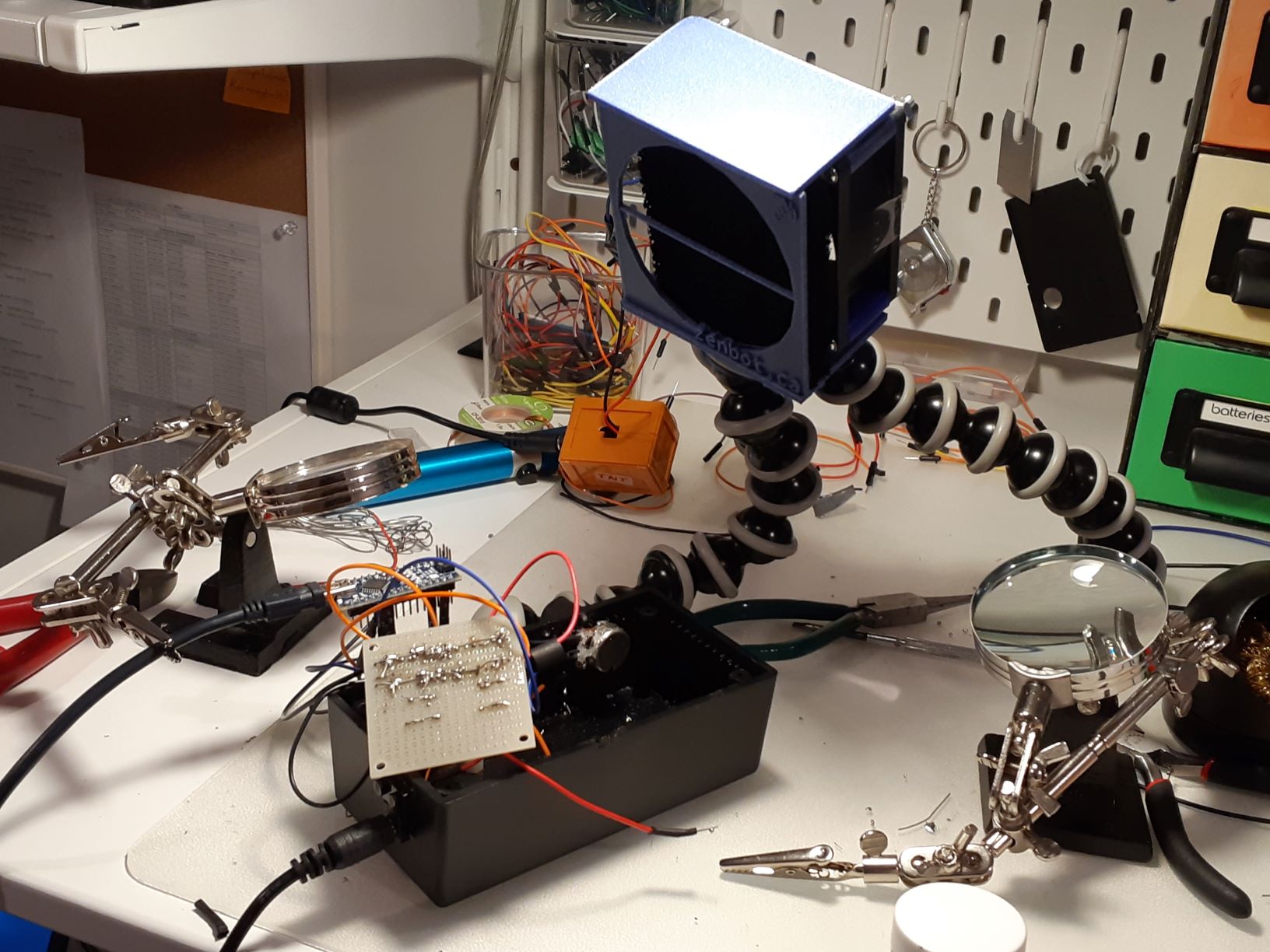
Some time ago, one of my kids came home with a couple of discarded truck lights they’d found. They’re the kind that go on the rear of a vehicle, with space for three bulbs each. They were in surprisingly good shape, so we started wondering: what if we put multicolour lights inside them and turned them into something new?
Before I got too far, I was given a short list of requirements. The lights needed to hang on the wall. They needed to talk to each other wirelessly. They had to show multiple colours. And, finally, could they run on batteries so we wouldn’t have cables dangling everywhere? No pressure.
Saying I went down a few dead ends would be putting it mildly. My first attempt involved a separate remote control and Arduino WiFi MKR 1010 boards, but I quickly ran into trouble. The boards were finicky about staying connected to Wi-Fi, performance was inconsistent, and the whole setup felt more complicated than it needed to be. Eventually, I switched to ESP32 boards using Bluetooth and moved the controls directly into one of the lights instead of a separate controller. The ESP32s just worked. In hindsight, if I’d started there, I probably could have avoided a lot of detours.
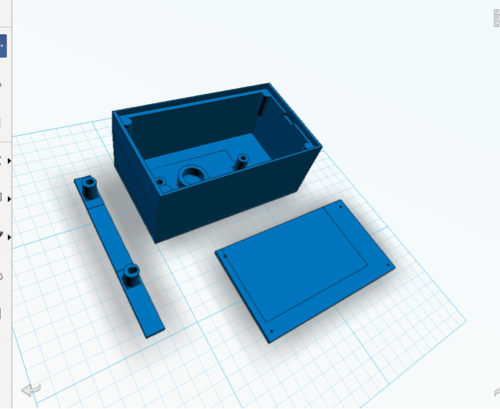
Of course, car lights aren’t exactly designed to hold a collection of hobbyist electronics. To make everything fit, I ended up 3D-printing several small boxes and covers, attaching them with bolts or Velcro. I deliberately avoided drilling new holes in the original lights, just in case we ever wanted to take the whole thing apart and sell them later.
Electronic components
- Common anode RGB LED – There was no reason for using a common anode LED, it wasn’t specified on the Amazon order and it works just as well.
- ESP32 – as I mentioned earlier, I had tried an Arduino WIFI MKR 1010. As well, I had also tried a Raspberry Pi Pico and I found the ESP32 were more stable and “just worked” for what I needed. I’ll probably use both the Arduino and the Pico for other projects, instead.
- Buck converter maybe this is overkill but I could pair this with more batteries and get good-enough voltage control.
- Slide switches – potentiometers would have been more fine-grained, but switches are fine fairly straightforward.
- Diode – I use this in case I am plugging in my ESP32 to change the code and don’t feel like unplugging the main power. It just does its job, which is to keep the current flowing in the right direction.
Circuit Diagrams
I have two diagrams, one is the “sender” of the signal and has three slide switches. The switches turn the colours one and off. The other is the bluetooth “receiver” which does not have any switches but is otherwise the same.

For the 9V battery, I used 6 AA batteries. I really wanted to ensure all the electronics were powered, properly and brought the voltage down using the buck converter.


3D printed components
The prints aren’t complicated, where the only thing that took any special calculation was a little trigonometry to get some of the angles for the back correct. Getting to use that was nice because I had just been tutoring my oldest in math and now I was able to use it in a “real world” situation.
The stl files can be reached via this link on Google Drive https://drive.google.com/file/d/1Uyve7hnl4fjpOUiTSy3FAjQ02FXD4fiL/view?usp=sharing

Code
This is the code for the ESP32 that sends commands to the receiving module. Full disclosure is ChatGPT helped troubleshoot this when I got stuck.
#include <BLEDevice.h>
#include <BLEUtils.h>
#include <BLEScan.h>
#include <BLEClient.h>
#include <BLERemoteService.h>
#include <BLERemoteCharacteristic.h>
#include <Arduino.h>
#include "driver/ledc.h"
#include <string>

///----set the switches
#define bluePin 4
#define greenPin 16
#define redPin 15
int redState;
int blueState;
int greenState;

//------set the LED pins
const int ledPin1 = 17; //red
const int ledPin2 = 23; //green
const int ledPin3 = 22; //blue
const int ledChannel1 = 0;
const int ledChannel2 = 1;
const int ledChannel3 = 2;
const int freq = 5000;
const int resolution = 8;

//-------set calculated variables
int rset;
int bset;
int gset;

static BLEAddress *pServerAddress;  // Peripheral BLE address
static boolean doConnect = false;
static boolean connected = false;
static BLERemoteCharacteristic* pRemoteCharacteristic;
///the following is for the button
String sendthing = "1";
int buttonState = 0;
///end of button thing
#define SERVICE_UUID        "12345678-1234-1234-1234-1234567890ab"  // Replace with your service UUID
#define CHARACTERISTIC_UUID "abcdefab-1234-5678-1234-abcdefabcdef"  // Replace with your characteristic UUID

// Callback to handle discovered peripherals during scan
class MyAdvertisedDeviceCallbacks: public BLEAdvertisedDeviceCallbacks {
    void onResult(BLEAdvertisedDevice advertisedDevice) {
        Serial.print("Found device: ");
        Serial.println(advertisedDevice.toString().c_str());

        // If device has the service UUID we want
        if (advertisedDevice.haveServiceUUID() && advertisedDevice.isAdvertisingService(BLEUUID(SERVICE_UUID))) {
            advertisedDevice.getScan()->stop();  // stop scanning
            pServerAddress = new BLEAddress(advertisedDevice.getAddress());
            doConnect = true;                     // flag to connect in loop
            Serial.println("Found target device! Will connect...");
        }
    }
};

// Connect to peripheral and discover service/characteristic
bool connectToServer(BLEAddress pAddress) {
    Serial.print("Connecting to ");
    Serial.println(pAddress.toString().c_str());

    BLEClient*  pClient  = BLEDevice::createClient();
    Serial.println(" - Created client");

    if (!pClient->connect(pAddress)) {
        Serial.println("Failed to connect.");
        return false;
    }
    Serial.println(" - Connected to server");

    BLERemoteService* pRemoteService = pClient->getService(SERVICE_UUID);
    if (pRemoteService == nullptr) {
        Serial.println("Failed to find service.");
        pClient->disconnect();
        return false;
    }
    Serial.println(" - Found service");

    pRemoteCharacteristic = pRemoteService->getCharacteristic(CHARACTERISTIC_UUID);
    if (pRemoteCharacteristic == nullptr) {
        Serial.println("Failed to find characteristic.");
        pClient->disconnect();
        return false;
    }
    Serial.println(" - Found characteristic");

    connected = true;
    return true;
}

void setup() {
    Serial.begin(115200);
    Serial.print("sending[0] is :");
    Serial.println(sendthing[0]);
  //----these are the on-off switches
  pinMode(redPin, INPUT_PULLUP);
  pinMode(bluePin, INPUT_PULLUP);
  pinMode(greenPin, INPUT_PULLUP);

  // Set up PWM channels
  ledcSetup(ledChannel1, freq, resolution);
  ledcSetup(ledChannel2, freq, resolution);
  ledcSetup(ledChannel3, freq, resolution);

  // Attach LED pins
  ledcAttachPin(ledPin1, ledChannel1);
  ledcAttachPin(ledPin2, ledChannel2);
  ledcAttachPin(ledPin3, ledChannel3);

  // Force the duty to zero - the LEDs are Anode, meaning the 'high' is 'low'
  ledcWrite(ledChannel1, 255);
  ledcWrite(ledChannel2, 255);
  ledcWrite(ledChannel3, 255);

    Serial.println("Starting ESP32 BLE Client...");

    BLEDevice::init("ESP32_Client");

    BLEScan* pBLEScan = BLEDevice::getScan();
    pBLEScan->setAdvertisedDeviceCallbacks(new MyAdvertisedDeviceCallbacks());
    pBLEScan->setActiveScan(true);
    pBLEScan->start(10, false); // scan for 10 seconds
}

void loop() {
    if (doConnect) {
        if (connectToServer(*pServerAddress)) {
            Serial.println("We are now connected to the BLE Server.");
        } else {
            Serial.println("Failed to connect to server.");
        }
        doConnect = false;
    }

    if (connected) {
        if (pRemoteCharacteristic->canRead()) {
          //  String value = pRemoteCharacteristic->readValue();  // Arduino String
            String value = String(pRemoteCharacteristic->readValue().c_str()); // correct for ESP32 BLE Arduino
    Serial.print("Characteristic value: ");
    Serial.println(value.c_str());  // can print Arduino String directly
        }

        // Example: write a value
        if (pRemoteCharacteristic->canWrite()) {
            pRemoteCharacteristic->writeValue(sendthing[0]);
            Serial.print("I sent ");
            Serial.println(sendthing[0]);
        }

        delay(300);  // wait 0.5 seconds before next read/write
    }
    // put your main code here, to run repeatedly:
  redState = digitalRead(redPin);
  blueState = digitalRead(bluePin);
  greenState = digitalRead(greenPin);
  Serial.print("Red state is: ");
  Serial.print(redState);
  Serial.print(" and Blue state is: ");
  Serial.print(blueState);
  Serial.print(" and Green state is: ");
  Serial.print(greenState);
  Serial.print(" and the sendthing is: ");
  Serial.println(sendthing);
  //all the different possiblities
  if(redState == LOW && greenState == LOW && blueState == LOW){
    sendthing = "1";
  }
  else if(redState == HIGH && greenState == LOW && blueState == LOW){
    sendthing = "2"; //red
  }
  else if(redState == HIGH && greenState == HIGH && blueState == LOW){
    sendthing = "3";
  }
  else if(redState == HIGH && greenState == HIGH && blueState == HIGH){
    sendthing = "4";
  }
  else if(redState == LOW && greenState == HIGH && blueState == HIGH){
    sendthing = "5";
  }
  else if(redState == LOW && greenState == LOW && blueState == HIGH){
    sendthing = "6";
  }
  else if(redState == HIGH && greenState == LOW && blueState == HIGH){
    sendthing = "7";
  }
  else if(redState == LOW && greenState == HIGH && blueState == LOW){
    sendthing = "8";
  }
    for (int duty = 0; duty <= 255; duty++) {
      redState == LOW ? rset = 255 : rset = duty ;
      greenState == LOW ? gset = 255 : gset = duty ;
      blueState == LOW ? bset = 255 : bset = duty ;
      ledcWrite(ledChannel1, rset);
      ledcWrite(ledChannel2, gset);
      ledcWrite(ledChannel3, bset);
      delay(30);
    }
  for (int duty = 255; duty >= 0; duty--) {
      redState == LOW ? rset = 255 : rset = duty ;
      greenState == LOW ? gset = 255 : gset = duty ;
      blueState == LOW ? bset = 255 : bset = duty ;
      ledcWrite(ledChannel1, rset);
      ledcWrite(ledChannel2, gset);
      ledcWrite(ledChannel3, bset);
      delay(30);
    }
}
The following is the receiver code on the module with no switches.
#include <BLEDevice.h>
#include <BLEServer.h>
#include <BLEUtils.h>
#include <BLE2902.h>
#include <string>
#include <Arduino.h>
#include "driver/ledc.h"

// UUIDs (use random unique ones if you want)
#define SERVICE_UUID        "12345678-1234-1234-1234-1234567890ab"
#define CHARACTERISTIC_UUID "abcdefab-1234-5678-1234-abcdefabcdef"

//------set the LED pins
const int ledPin1 = 22; //red
const int ledPin2 = 23; //green
const int ledPin3 = 17; //blue
const int ledChannel1 = 0;
const int ledChannel2 = 1;
const int ledChannel3 = 2;
const int freq = 5000;
const int resolution = 8;
int rset;
int bset;
int gset;
String value;
#define LED_1 4
#define LED_2 5
int theglobal = 4;
int usethis = 4;
BLECharacteristic *commandCharacteristic;

class CommandCallback : public BLECharacteristicCallbacks {
  void onWrite(BLECharacteristic *pCharacteristic) {
    value = String(pCharacteristic->getValue().c_str()); // correct for ESP32 BLE Arduino
    Serial.print("the value is: ");
    Serial.println(value);
    if (value.length() > 0) {
      Serial.print("Received command: ");
     // Serial.println(value.c_str());
        Serial.println(value);
      // Example: turn LED on/off with "ON"/"OFF"
      if (value == "1") {
        // everything off
        rset = 255;
        gset = 255;
        bset = 255;
      } else if (value == "2") {
        // red
        rset = 1;
        gset = 255;
        bset = 255;

      } else if (value == "3") {
        // red and green
        rset = 1;
        gset = 1;
        bset = 255;

      } else if (value == "4") {
        // white
        rset = 1;
        gset = 1;
        bset = 1;

      } else if (value == "5") {
        // yellow
        rset = 255;
        gset = 1;
        bset = 1;

      } else if (value == "6") {
        // blue
        rset = 255;
        gset = 255;
        bset = 1;

      } else if (value == "7") {
        // purple
        rset = 1;
        gset = 255;
        bset = 1;

      } else if (value == "8") {
        // all gree
        rset = 255;
        gset = 1;
        bset = 255;
      }
      // Example: accept "R,G,B" (basic parse for PWM LED strip)
      else {
        /// not sure so just turn everyhing on
        rset = 1;
        gset = 1;
        bset = 1;
      }
    }
  }
};

void setup() {
  Serial.begin(115200);
    // Set up PWM channels
  ledcSetup(ledChannel1, freq, resolution);
  ledcSetup(ledChannel2, freq, resolution);
  ledcSetup(ledChannel3, freq, resolution);

  // Attach LED pins
  ledcAttachPin(ledPin1, ledChannel1);
  ledcAttachPin(ledPin2, ledChannel2);
  ledcAttachPin(ledPin3, ledChannel3);

  // Force the duty to zero - the LEDs are Anode, meaning the 'high' is 'low'
  ledcWrite(ledChannel1, 255);
  ledcWrite(ledChannel2, 255);
  ledcWrite(ledChannel3, 255);

  BLEDevice::init("ReceiverESP32");  // BLE device name
  BLEServer *pServer = BLEDevice::createServer();

  BLEService *pService = pServer->createService(SERVICE_UUID);

  commandCharacteristic = pService->createCharacteristic(
    CHARACTERISTIC_UUID,
    BLECharacteristic::PROPERTY_WRITE |
    BLECharacteristic::PROPERTY_READ
  );

  commandCharacteristic->setCallbacks(new CommandCallback());
  commandCharacteristic->setValue("Waiting...");

  pService->start();

  BLEAdvertising *pAdvertising = BLEDevice::getAdvertising();
  pAdvertising->addServiceUUID(SERVICE_UUID);
  BLEDevice::startAdvertising();

  Serial.println("Peripheral ready, advertising as 'ReceiverESP32'. With new code!");
}

void loop() {


        int rval;
        int bval;
        int gval;

    for (int duty = 0; duty <= 255; duty++) {
      rval = max(duty, rset) ;
      bval = max(duty, bset) ;
      gval = max(duty, gset) ;
      ledcWrite(ledChannel1, rval);
      ledcWrite(ledChannel2, gval);
      ledcWrite(ledChannel3, bval);
      Serial.print("the rval is :");
        Serial.print(rval);
        Serial.print(" and the gval is :");
        Serial.print(gval);
        Serial.print(" and the bval is :");
        Serial.print(bval);
        Serial.print(" and the duty is: ");
        Serial.println(duty);
      delay(30);
    }
    delay(30);
  for (int duty = 255; duty >= 0; duty--) {
      rval = max(duty, rset) ;
      bval = max(duty, bset) ;
      gval = max(duty, gset) ;
      ledcWrite(ledChannel1, rval);
      ledcWrite(ledChannel2, gval);
      ledcWrite(ledChannel3, bval);
      Serial.print("the rval is :");
        Serial.print(rval);
        Serial.print(" and the gval is :");
        Serial.print(gval);
        Serial.print(" and the bval is :");
        Serial.print(bval);
        Serial.print(" and the duty is: ");
        Serial.println(duty);
      delay(30);
    }
}